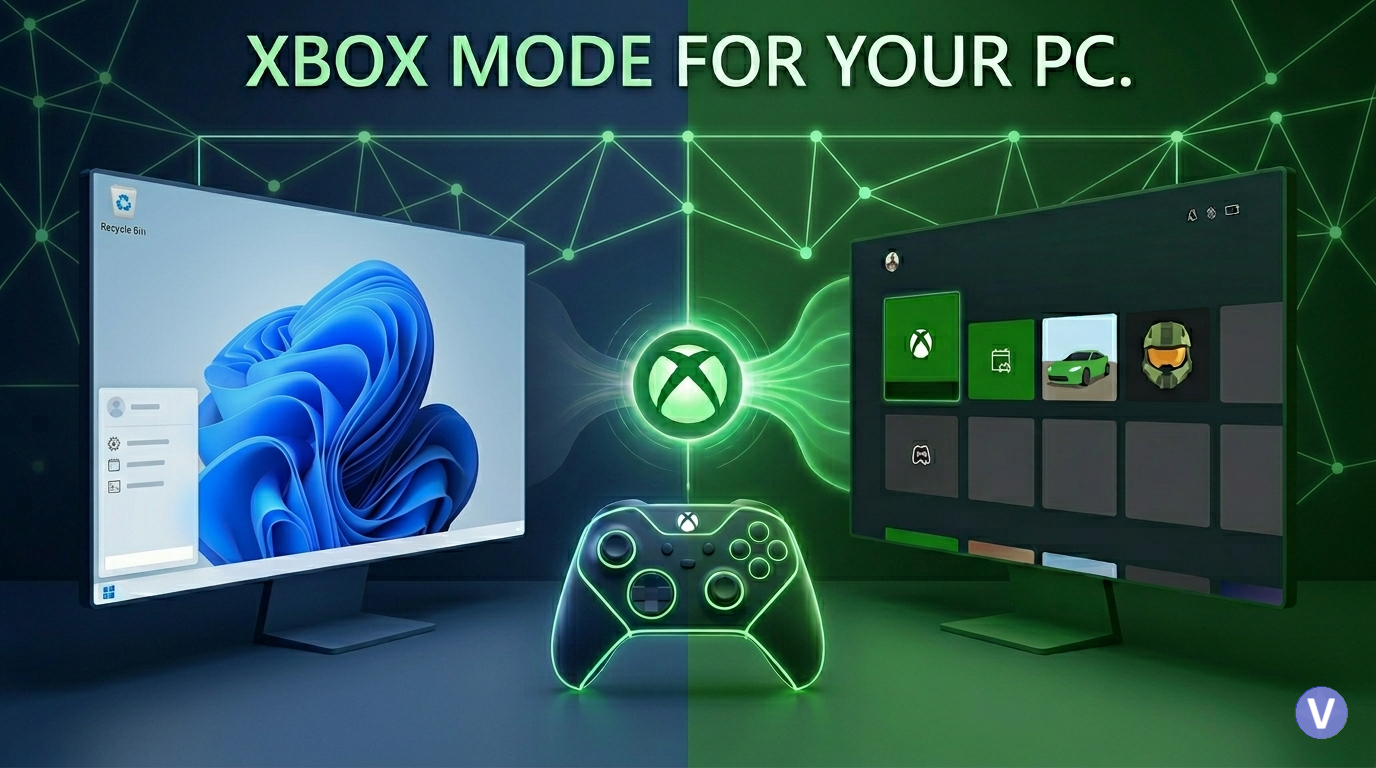
What is Xbox Full Screen Experience (FSE)?
Xbox Mode is an experimental feature currently being tested in Windows Insider builds, Designed with modern gaming devices and controller-first experiences in mind, that completely re-imagines the standard desktop interface.
It is similar to Steams “Big Picture Mode” for your PC. It provides a full-screen gaming interface layered on top of Windows, rather than replacing the operating system with a simplified, controller-friendly interface dedicated entirely to your game library and the Xbox App. It’s the perfect solution for turning a living room PC or a gaming laptop into a console.
Why You Should Use It: The Benefits
The biggest reason to use FSE is resource optimization. Because this mode significantly reduces the amount of background activity on your PC.
The Key Advantages:
- Save 2GB of System RAM: Tests have shown that running in FSE mode can free up an average of 2 GB of RAM. This is massive for systems with limited RAM (like 16GB) or iGPUs (which share system memory with the graphics processor).
- Multitask Like a Console: The mode allows you to have multiple games running at once and seamlessly swap between them. By using a controller’s Xbox Button, you can open a dedicated task switcher to jump between active games.
- A True Living Room Experience: FSE makes using a PC in your living room far easier. You can navigate your entire Game Pass library, launch games, and switch between applications using only an Xbox controller.
- Performance Gains (Small but Real): While you shouldn’t expect a miraculous jump in frame rates, you may see minor gains. In early tests, some benchmarks like Cyberpunk 2077 saw an increase of 1-2 FPS simply because fewer resources were being diverted to the desktop.
How to Activate Xbox Mode on Your PC
Currently, this feature is available through the Windows Insider Program. Follow these steps to get it running on any Windows 11 machine.
Step 1: Join the Xbox Insider Preview
- Go to the Microsoft Store and download the Xbox Insider Hub.
- Once installed, launch the app and navigate to Previews > PC Gaming.
- Choose Manage Opt-in and opt into the PC Gaming preview.
Step 2: Join the Windows Insider Program
- Open your PC Settings.
- Go to Windows Update > Windows Insider Program.
- Click Get Started and link your Microsoft/Xbox account.
- Important: When prompted, select either the Dev Channel or the Beta Channel. (The Beta Channel is highly recommended for stability).
- Restart your PC to complete the update process.
Step 3: Enable Xbox Full Screen Experience
- After your PC restarts, return to Settings.
- Go to Gaming > Full Screen Experience.
- Toggle “Enter full screen experience on startup” to ON.
- Your default Home App will be set to the Xbox App.
Control and Navigation
While you can navigate FSE with a keyboard and mouse, it is explicitly designed for an Xbox Controller.
- Enter Mode (Manual): If you don’t use the startup option, you can enter FSE at any time by pressing Windows + G and selecting it from the Game Bar.
- Quick Menu: Pressing the Xbox Button (the central “Guide” button) will open the familiar Game Bar overlay.
- Task Switching: To swap between active games, HOLD the Xbox Button. This will bring up the dedicated task switcher, allowing you to quickly jump to another running application or game.
Wrapping Up: The Start of a Great Feature
Microsoft has indicated that FSE will continue to receive updates, including the ability to set other applications (like Steam’s Big Picture Mode) as your default Home App. For now, it’s a powerful, resource-saving tool that significantly improves the experience of gaming on a standard Windows 11 PC.